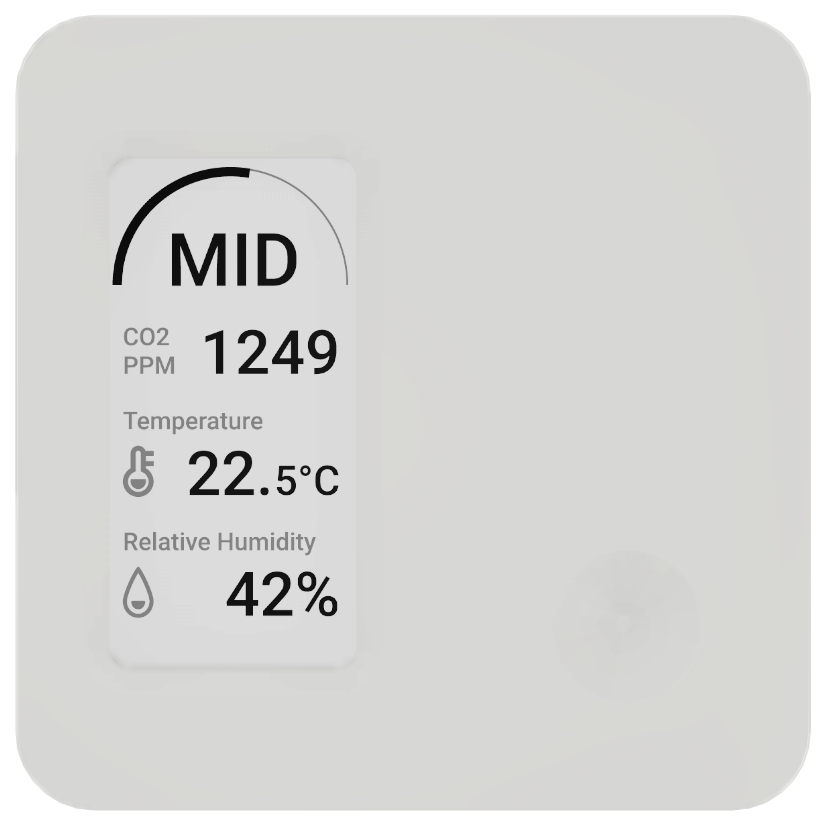
ELSYS - EIAQd10
- Manufacturer: ELSYS
- Product: EIAQd10 / ERS Display CO2 LoRa
The ELSYS EIAQd10 is an indoor air quality room sensor with an e-paper display to measure temperature, humidity, light, motion and CO2. The display shows temperature, humidity and CO2.
The EIAQd10 belongs to the ELSYS ERS Display series (marketed today as “ERS Display CO2 LoRa”). The “d” stands for display, “10” for the 2.1” display generation.
Table of contents
- Specifications
- Documents / Links
- Ordering Info
- Adding the Device to TTN
- Change Settings over Downlink messages (optional)
- CO2 Sensor and ABC Calibration
- Data Points
- Payload Decoder
Specifications
- Indoor device
- Price ca. EUR 224.59 (29.06.2026)
- Sensors
- Temperature, 0 … +50 [°C], ± 0.2 °C, Resolution 0.1 °C
- relative Humidity, 0 … 85[%rH], ± 2 %rH at 25 °C, Resolution 1 %rH (non-condensing)
- Light / Brightness, 0 … 65’535 [lux], ± 10 % or ± 10 lux (sensor behind the PIR lens)
- Motion (PIR), passive infrared, counter, 8 s blanking time after an event
- CO2, 400 … 5’000 [ppm], ± 30 ppm + 3 % of measurement value, ABC self-calibration
- Display: 2.13” E-Paper / E-Ink, keeps the image without power, °C/°F switchable, languages EN/DE/FR/IT/ES
- Power Supply: 1 … 2 × AA Lithium (Li-SOCl₂, ER14505, 3.6 V), user replaceable
- Expected life time: up to 10 years, depending on sampling-/transmission rate and data rate
- LoRaWAN version: 1.0.4
- LoRaWAN Regional Parameters: RP002-1.0.4 (in the TTN console select
RP002 Regional Parameters 1.0.4, or the newest RP002 revision offered) - LoRaWAN device class: A
- Protection: IP20 (indoor only)
- Operating Temperature: 0 … +50 °C, 0 … 85 %rH (non-condensing)
- Configuration: NFC (ELSYS Sensor Settings App) or over-the-air (downlink)
- Size: 76.2 × 76.2 × 22.5 mm
- Weight: ca. 53 … 60 g (without batteries)
Note
The EIAQd10 does not measure VOC, sound or atmospheric pressure. Those are covered by other models of the series (VOC → EVdp10, Sound → ESdp10 / EIAQSdp10).
Documents / Links
- ERS Display CO2 LoRa product page (elsys.se)
- Operating Manual ERS Display series (PDF)
- ELSYS LoRa payload documentation (PDF)
- Official TTN payload decoder (GitHub)
- ELSYS NFC Sensor Settings specification
Ordering Info
- Part Number: EIAQD10
- Ordering Link (elsys.se reseller list)
Adding the Device to TTN
Read out DevEUI, JoinEUI and AppKey with the ELSYS App
ELSYS sensors are configured via NFC with the ELSYS Sensor Settings App (smartphone with NFC required).
- Install the app “Sensor settings” from ELSYS: Google Play / App Store (iPhone 7 or newer, iOS 16+). On Android, enable NFC in the phone settings
- Open the app and hold the smartphone against the front of the sensor (NFC zone) until the app confirms the read
- iOS: the app starts with an empty screen — first tap the read button, then hold the top edge of the iPhone (NFC antenna) against the sensor. The settings only appear after a successful read
- The app now shows the current configuration of the device, among them:
DevEUI(also printed on the device label)JoinEUI(called App EUI in the app)AppKey
- Copy/note these three values, they are needed to register the device in TTN
- In the app you can also change the sampling-/transmission rate and the data rate. To apply changed settings, hold the smartphone against the sensor again to write them back via NFC
Register the Device
- Before a device can communicate via “The Things Network” we have to add it to an application.
- Create a new application
- Under
End devicesin the application click(+) Register end device - Under
Input methodselectEnter end device specifics manually(or select ELSYS from the LoRaWAN Device Repository) - Under
Frequency planselectEurope 863-870 Mhz (SF9 for RX2 - recommended) - Under
LoRaWAN versionselect1.0.4 - Under
Regional Parameters versionselectRP002 Regional Parameters 1.0.4(or the newest RP002 revision offered; for EU868 the differences between the RP002 revisions are irrelevant) - Under
JoinEUIenter theJoinEUIfrom the app and pressConfirm - Enter as well the
DevEUIand theAppKeyfrom the app - Set an end-device name
- Press
Register end device - Add the payload formatter from below, either to the device itself or if all devices in the app are from the same type, to the application
- Write the same
JoinEUIandAppKeyback to the device via the NFC app (they must match the TTN values)
- After a successful join the display switches to normal mode and the device starts sending uplinks
- Now the device should join the network and you can see the incoming telegrams in the
Live datasection
Power On / Trigger a Join
The sensor has no power switch — it starts as soon as the batteries are inserted:
- Remove the back panel of the sensor with a small screwdriver
- Insert the batteries (1 … 2 × AA 3.6 V Lithium, type ER14505). If only one battery is used, it must go into slot
A— two batteries are recommended for maximum operation time - On startup the LED lights red (power on), then flashes green (loading configuration)
- Afterwards the sensor automatically starts the OTAA join — the LED flashes orange on every join attempt. It retries every 10 seconds and increases the interval by 10 % after each failed attempt, up to a maximum of 1 hour
- After a successful join the sensor enters sampling mode, the display switches to normal mode and the LED flashes green on every transmission
To trigger a new join manually (e.g. after changing keys or if the device got stuck in the 1 hour retry interval):
- Write settings via the NFC app: any changed NFC data makes the sensor reboot and rejoin (rewriting the same
AppKeyis enough) - Power cycle: remove the batteries for a few seconds and reinsert them
- If the device is already joined: send the reboot downlink
3E01FE(see below)
LED Indication
| LED Indicator | Action | |—————|——–| | Red/Green Sequence | Sensor is starting up | | Short Orange Blink | LoRa Join Request Transmission | | Short Green Blink | LoRa Uplink Transmission | | Short Red Blink | Sensor failed to send an uplink. Common cause is duty cycle limits. | | Long Blue Blink | Sensor has loaded new configuration from NFC |
Change Settings over Downlink messages (optional)
ELSYS sensors can be configured over the air with LoRaWAN downlink messages. All ELSYS devices share the same downlink protocol.
- In the TTN Console on the device view, select the device and change to the tab
Messaging, selectDownlink - Change the
FPortto6(downlinks go to the configured uplink port + 1; the default uplink port is 5) - Copy/paste the payload from the examples below into the
Payloadfield - Press
Send(orSchedule downlink) - The device is Class A, so it only receives the downlink after its next uplink. The setting then gets applied.
ELSYS also provides an online Downlink Settings Generator that creates the hex payloads for you.
Frame format
| Header | Length | Setting ID | Value | (Reboot) | |——–|——–|————|——-|———-| | 3E | number of following bytes | e.g. 14 (split period) | value bytes | FE |
Transmission interval (split period)
The main setting is the split period (ID 0x14), the base interval at which the device measures and transmits. The value is the interval in seconds as a 4-byte big-endian number. Appending FE (reboot) is recommended so the change is applied reliably.
| Interval | Seconds | Payload (FPort 6) |
|---|---|---|
| 5 minutes | 300 | 3E06140000012CFE |
| 10 minutes | 600 | 3E061400000258FE |
| 15 minutes | 900 | 3E061400000384FE |
| 30 minutes | 1800 | 3E061400000708FE |
| 60 minutes | 3600 | 3E061400000E10FE |
Calculation: seconds = minutes × 60, then insert as a 32-bit big-endian hex value.
Per-sensor periods (e.g. CO2 0x19, PIR/motion 0x18, temperature 0x15) act as multipliers of the split period, so individual measurements can be sent less often than the base interval.
Other useful downlinks
| Action | Payload | |——–|———| | Reboot the device | 3E01FE | | Disable confirmed messages (Ack off) + reboot | 3E030A00FE |
The full list of configurable parameters is documented in the ELSYS Sensor downlink payload (PDF).
Display options
The e-paper display of the EIAQd10 shows temperature, relative humidity and CO2 (numeric ppm value plus a text indicator LOW / MID / HIGH depending on the CO2 level). The following display options can be configured:
- Temperature unit: Celsius or Fahrenheit
- Language of the on-screen text: English, German, French, Italian, Spanish
- CO2 thresholds for the
LOW/MID/HIGHindicator (user-selectable upper/lower threshold, same “Traffic Light” thresholds that also drive the LED color red/orange/green)
Note
These display options have no dedicated LoRaWAN downlink setting ID (the documented 3E protocol only covers IDs 0x01 … 0x24 plus special commands) — the reliable way to set them is via NFC with the ELSYS Sensor Settings App. The only over-the-air route is the Generic downlink 0xFD (1 byte length, x byte NFC string), which writes a raw NFC settings string (Key:Value) to the sensor. The exact NFC key names of the display/threshold parameters are not publicly documented — read the raw NFC data of the sensor (any NFC reader app, NDEF text record) after setting the thresholds once in the app to learn the exact keys, or ask ELSYS support. The display does a full refresh (black/white flash) automatically every 72 updates. The EIAQd10 has no button.
CO2 Sensor and ABC Calibration
The CO2 sensor is an NDIR sensor (non-dispersive infrared): an IR source shines through the measurement chamber, CO2 absorbs the light at ~4.26 µm and the attenuation at the detector corresponds to the CO2 concentration. Because the optical components slowly age, the reading drifts over months — this is compensated by the ABC algorithm (Automatic Baseline Correction):
- ABC records the lowest CO2 value over a period of 8 days and anchors it to the fresh air level (~400 ppm). It assumes that the room is unoccupied and ventilated at some point during each period (nights/weekends)
- After installation, ABC needs 3 consecutive 8-day periods with fresh air contact until the measurement is fully corrected (plan for ~1 month)
- ABC is enabled by default and is the right, maintenance-free choice for normal rooms (offices, classrooms)
- In permanently occupied or poorly ventilated rooms (24/7 operation), ABC learns a wrong baseline and pulls the readings down. In such cases disable ABC (via the ELSYS Sensor Settings App) and calibrate manually once per year instead
Manual calibration
Setting Co2Cfg = 1 (downlink ID 0x12) triggers a one-time manual calibration. The sensor must be in fresh air (outside) — the current reading is set as the fresh air reference:
| Action | Payload (FPort 6) |
|---|---|
| Trigger manual CO2 calibration (sensor must be in fresh air!) | 3E021201 |
The calibration can also be triggered via NFC in the ELSYS Sensor Settings App (parameter Co2Cfg).
Back to ABC / normal operation
- The manual calibration is a one-shot action and does not disable ABC — afterwards the sensor simply continues in normal operation (
Co2Cfg = 0, downlink3E021200if you want to set it explicitly) - If ABC was disabled in the Sensor Settings App, re-enable it there via NFC — there is no documented downlink command for the ABC on/off toggle
Data Points
The payload decoder below uses the same data point naming convention as the Avelon Wisely sensors:
| ELSYS field | Data point | Unit | Description |
|---|---|---|---|
temperature | temperature_degrC_abs | °C | Air temperature |
humidity | humidity_perc_abs | %rH | Relative humidity |
light | brightness_lux_abs | lux | Ambient brightness |
motion | motion_count_inc | - | Number of PIR motion detections per interval |
co2 | co2_ppm_abs | ppm | CO2 concentration |
vdd | battery_volt_abs | V | Battery voltage |
vdd | battery_state_abs | - | Battery state, mapped from voltage (0 = Critical, 1 = Warning, 2 = Good, 3 = Very Good) |
Payload Decoder
ELSYS uses one universal payload decoder for all its devices. The decoder below is the official ELSYS/TTN decoder, extended with a mapping that renames the relevant fields of the EIAQd10 to the data point convention used in this documentation (see table above).
// ELSYS universal payload decoder (official, www.elsys.se)
// Source: https://github.com/TheThingsNetwork/lorawan-devices/blob/master/vendor/elsys/elsys.js
// Extended with a mapping to the data point naming convention used in this documentation.

function mapBatteryVoltageAbs(voltage) {
  if (voltage < 3.35) {
    return 0; // Critical
  } else if (voltage < 3.45) {
    return 1; // Warning
  } else if (voltage < 3.55) {
    return 2; // Good
  } else {
    return 3; // Very Good
  }
}

var TYPE_TEMP = 0x01; // temp 2 bytes -3276.8°C -->3276.7°C
var TYPE_RH = 0x02; // Humidity 1 byte  0-100%
var TYPE_ACC = 0x03; // acceleration 3 bytes X,Y,Z -128 --> 127 +/-63=1G
var TYPE_LIGHT = 0x04; // Light 2 bytes 0-->65535 Lux
var TYPE_MOTION = 0x05; // No of motion 1 byte  0-255
var TYPE_CO2 = 0x06; // Co2 2 bytes 0-65535 ppm
var TYPE_VDD = 0x07; // VDD 2byte 0-65535mV
var TYPE_ANALOG1 = 0x08; // VDD 2byte 0-65535mV
var TYPE_GPS = 0x09; // 3bytes lat 3bytes long binary
var TYPE_PULSE1 = 0x0a; // 2bytes relative pulse count
var TYPE_PULSE1_ABS = 0x0b; // 4bytes no 0->0xFFFFFFFF
var TYPE_EXT_TEMP1 = 0x0c; // 2bytes -3276.5C-->3276.5C
var TYPE_EXT_DIGITAL = 0x0d; // 1bytes value 1 or 0
var TYPE_EXT_DISTANCE = 0x0e; // 2bytes distance in mm
var TYPE_ACC_MOTION = 0x0f; // 1byte number of vibration/motion
var TYPE_IR_TEMP = 0x10; // 2bytes internal temp 2bytes external temp -3276.5C-->3276.5C
var TYPE_OCCUPANCY = 0x11; // 1byte data
var TYPE_WATERLEAK = 0x12; // 1byte data 0-255
var TYPE_GRIDEYE = 0x13; // 65byte temperature data 1byte ref+64byte external temp
var TYPE_PRESSURE = 0x14; // 4byte pressure data (hPa)
var TYPE_SOUND = 0x15; // 2byte sound data (peak/avg)
var TYPE_PULSE2 = 0x16; // 2bytes 0-->0xFFFF
var TYPE_PULSE2_ABS = 0x17; // 4bytes no 0->0xFFFFFFFF
var TYPE_ANALOG2 = 0x18; // 2bytes voltage in mV
var TYPE_EXT_TEMP2 = 0x19; // 2bytes -3276.5C-->3276.5C
var TYPE_EXT_DIGITAL2 = 0x1a; // 1bytes value 1 or 0
var TYPE_EXT_ANALOG_UV = 0x1b; // 4 bytes signed int (uV)
var TYPE_TVOC = 0x1c; // 2 bytes (ppb)
var TYPE_DEBUG = 0x3d; // 4bytes debug

function bin16dec(bin) {
  var num = bin & 0xffff;
  if (0x8000 & num) num = -(0x010000 - num);
  return num;
}
function bin8dec(bin) {
  var num = bin & 0xff;
  if (0x80 & num) num = -(0x0100 - num);
  return num;
}

function DecodeElsysPayload(data) {
  var obj = {};
  for (var i = 0; i < data.length; i++) {
    switch (data[i]) {
      case TYPE_TEMP:
        var temp = (data[i + 1] << 8) | data[i + 2];
        temp = bin16dec(temp);
        obj.temperature = temp / 10;
        i += 2;
        break;
      case TYPE_RH:
        var rh = data[i + 1];
        obj.humidity = rh;
        i += 1;
        break;
      case TYPE_ACC:
        obj.x = bin8dec(data[i + 1]);
        obj.y = bin8dec(data[i + 2]);
        obj.z = bin8dec(data[i + 3]);
        i += 3;
        break;
      case TYPE_LIGHT:
        obj.light = (data[i + 1] << 8) | data[i + 2];
        i += 2;
        break;
      case TYPE_MOTION:
        obj.motion = data[i + 1];
        i += 1;
        break;
      case TYPE_CO2:
        obj.co2 = (data[i + 1] << 8) | data[i + 2];
        i += 2;
        break;
      case TYPE_VDD:
        obj.vdd = (data[i + 1] << 8) | data[i + 2];
        i += 2;
        break;
      case TYPE_ANALOG1:
        obj.analog1 = (data[i + 1] << 8) | data[i + 2];
        i += 2;
        break;
      case TYPE_GPS:
        i++;
        obj.lat = (data[i + 0] | (data[i + 1] << 8) | (data[i + 2] << 16) | (data[i + 2] & 0x80 ? 0xff << 24 : 0)) / 10000;
        obj.long = (data[i + 3] | (data[i + 4] << 8) | (data[i + 5] << 16) | (data[i + 5] & 0x80 ? 0xff << 24 : 0)) / 10000;
        i += 5;
        break;
      case TYPE_PULSE1:
        obj.pulse1 = (data[i + 1] << 8) | data[i + 2];
        i += 2;
        break;
      case TYPE_PULSE1_ABS:
        obj.pulseAbs = (data[i + 1] << 24) | (data[i + 2] << 16) | (data[i + 3] << 8) | data[i + 4];
        i += 4;
        break;
      case TYPE_EXT_TEMP1:
        var temp1 = (data[i + 1] << 8) | data[i + 2];
        temp1 = bin16dec(temp1);
        obj.externalTemperature = temp1 / 10;
        i += 2;
        break;
      case TYPE_EXT_DIGITAL:
        obj.digital = data[i + 1];
        i += 1;
        break;
      case TYPE_EXT_DISTANCE:
        obj.distance = (data[i + 1] << 8) | data[i + 2];
        i += 2;
        break;
      case TYPE_ACC_MOTION:
        obj.accMotion = data[i + 1];
        i += 1;
        break;
      case TYPE_IR_TEMP:
        var iTemp = (data[i + 1] << 8) | data[i + 2];
        iTemp = bin16dec(iTemp);
        var eTemp = (data[i + 3] << 8) | data[i + 4];
        eTemp = bin16dec(eTemp);
        obj.irInternalTemperature = iTemp / 10;
        obj.irExternalTemperature = eTemp / 10;
        i += 4;
        break;
      case TYPE_OCCUPANCY:
        obj.occupancy = data[i + 1];
        i += 1;
        break;
      case TYPE_WATERLEAK:
        obj.waterleak = data[i + 1];
        i += 1;
        break;
      case TYPE_GRIDEYE:
        var ref = data[i + 1];
        i++;
        obj.grideye = [];
        for (var j = 0; j < 64; j++) {
          obj.grideye[j] = ref + data[1 + i + j] / 10.0;
        }
        i += 64;
        break;
      case TYPE_PRESSURE:
        var press = (data[i + 1] << 24) | (data[i + 2] << 16) | (data[i + 3] << 8) | data[i + 4];
        obj.pressure = press / 1000;
        i += 4;
        break;
      case TYPE_SOUND:
        obj.soundPeak = data[i + 1];
        obj.soundAvg = data[i + 2];
        i += 2;
        break;
      case TYPE_PULSE2:
        obj.pulse2 = (data[i + 1] << 8) | data[i + 2];
        i += 2;
        break;
      case TYPE_PULSE2_ABS:
        obj.pulseAbs2 = (data[i + 1] << 24) | (data[i + 2] << 16) | (data[i + 3] << 8) | data[i + 4];
        i += 4;
        break;
      case TYPE_ANALOG2:
        obj.analog2 = (data[i + 1] << 8) | data[i + 2];
        i += 2;
        break;
      case TYPE_EXT_TEMP2:
        var temp3 = (data[i + 1] << 8) | data[i + 2];
        temp3 = bin16dec(temp3);
        if (typeof obj.externalTemperature2 === "number") {
          obj.externalTemperature2 = [obj.externalTemperature2];
        }
        if (Array.isArray(obj.externalTemperature2)) {
          obj.externalTemperature2.push(temp3 / 10);
        } else {
          obj.externalTemperature2 = temp3 / 10;
        }
        i += 2;
        break;
      case TYPE_EXT_DIGITAL2:
        obj.digital2 = data[i + 1];
        i += 1;
        break;
      case TYPE_EXT_ANALOG_UV:
        obj.analogUv = (data[i + 1] << 24) | (data[i + 2] << 16) | (data[i + 3] << 8) | data[i + 4];
        i += 4;
        break;
      case TYPE_TVOC:
        obj.tvoc = (data[i + 1] << 8) | data[i + 2];
        i += 2;
        break;
      default:
        i = data.length;
        break;
    }
  }
  return obj;
}

function decodeUplink(input) {
  var raw = DecodeElsysPayload(input.bytes);
  var data = {};

  // Map the EIAQd10 fields to the documentation data point convention
  if (raw.temperature !== undefined) data.temperature_degrC_abs = raw.temperature;
  if (raw.humidity !== undefined) data.humidity_perc_abs = raw.humidity;
  if (raw.light !== undefined) data.brightness_lux_abs = raw.light;
  if (raw.motion !== undefined) data.motion_count_inc = raw.motion;
  if (raw.co2 !== undefined) data.co2_ppm_abs = raw.co2;
  if (raw.vdd !== undefined) {
    data.battery_volt_abs = raw.vdd / 1000;
    data.battery_state_abs = mapBatteryVoltageAbs(data.battery_volt_abs);
  }

  return { data: data };
}