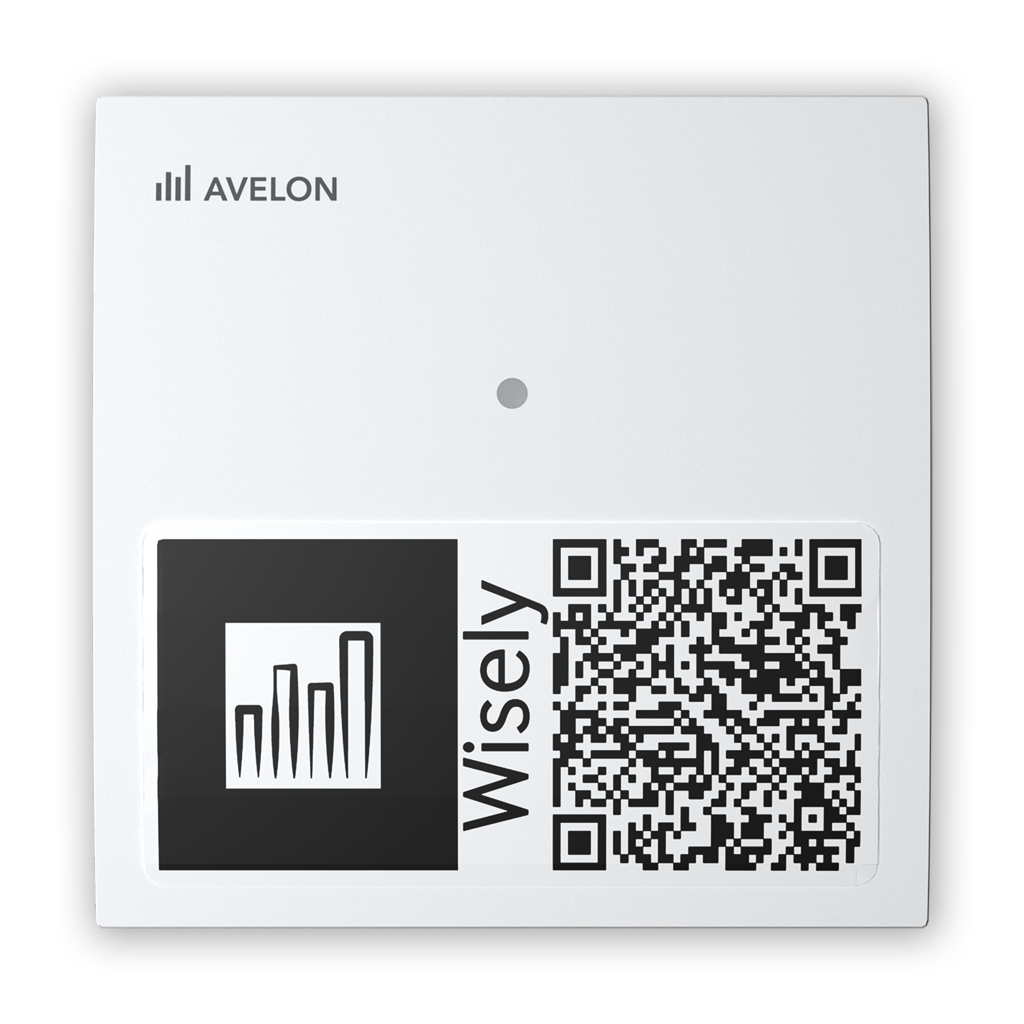
Avelon - Wisely CarbonSense
- Manufacturer: Avelon
- Product: Wisely CarbonSense
The Wisely CarbonSense is an indoor room sensor to measure temperature, humidity, CO2 and atmosperic pressure.
Table of contents
- Specifications
- Documents / Links
- Wisely Product Overview
- Ordering Info
- LED States
- Adding the Device to TTN
- Optional Settings
- Payload Decoder
Specifications
- Indoor device
- Price ca. CHF 191.- (25.05.2022)
- Sensors
- Temperature, -10 … +80 [°C], ± 0.1 °C between 20 … 60 °C
- relative Humidity, 0 … 95[%rH], ± 1.5 %rH between 10…80 %rH
- CO2, 400 … 5’000 [ppm], ± 30 ppm + 3 % of measurement value
- atmospheric pressure, [hPa], ± 1 hPa Attention: A series of Wisely CarbonSense (software version < 3.3) does not support air pressure measurement!
- Power Supply: 1 battery, 3.6 V, 3600 mAh, (A), Li-SOCl₂
- Expected life time: 3 … 8 years at roomtemperature
- Size: 80 × 80 × 27 mm
- Weight: 100 g
Documents / Links
- Payload description from avelon (online)
- Wisely Datasheet from avelon.com (2020-07-14)
- FAQ on avelon.com
- Temp- and Humidity Sensor Datasheet - Sensirion SHT3x
- Atmospheric Pressure Sensor Datasheet - Bosch BMP380
- CO2 Sensor Datasheet - Senseair Sunrise
- Wisely LED Payload Creator Excel (2023-10-19)
Wisely Product Overview
| Sensor | Wisely Standard | Wisely CarbonSense | Wisely AllSense (Simple Payload) | Wisely AllSense (Extended Payload) |
|---|---|---|---|---|
| Atmospheric pressure | ✓ | ✓ | * | ✓ * |
| Temperature | ✓ | ✓ | ✓ | ✓ |
| Humidity | ✓ | ✓ | ✓ | ✓ |
| VOC | ✓ | ✓ | ||
| Brightness | * | ✓ * | ||
| CO2 | ✓ | ✓ | ✓ | |
| PIR/Presence | * | ✓ * |
- Due to limitations in payload length, these sensors are not activated by default
Ordering Info
Attention, there are four different versions of the same sensor which have different software loaded on them. Only the “Self-Managed” version works with the lcm application. Do not order the version “The Things Network”, it will not work with the lcm application.
- Self-Managed -> that’s what you want to have!!!
Data goes over the ttn network to the ttn server where the lcm application can fetch them, no monthly charges or fees.
Other variants which don’t work with TTN
- Swisscom LPN
Means that the data goes to the AVELON server via Swisscom low power network, monthly charges apply. - The Things Network
Means that the data goes via ttn, but to the AVELON-server! No monthly charges. In this case the lcm application can’t access the data! - Building Automation
Integration in the Avelon automation system, license fees system.
LED States
If a CO2 limit is exceeded, the LED on the front side of the device changes color. According to the Avelon payload description it blinks every 60 seconds while the limit is exceeded (250 ms lighting, 500 ms pause - repeating 4 times).
The limit is evaluated on the measured CO2 value. A new value is only available every SensorSampleTime, so with a longer SensorSampleTime the LED reacts more slowly to changes in CO2 concentration.
| CO2 value | LED Color |
|---|---|
| 0 … 800 | green (on some devices this is deactivated) |
| 801 … 1400 | blue |
| > 1400 | red |
To deactivate or change the led behaviour see Change the LED blinking behaviour
CO2 Sensor ABC Algorithm
The ABC algorithm in CO2 sensors uses automatic base correction to reduce fluctuations and drifts in CO2 measurements. It continuously determines the zero point of the CO2 signal and adjusts it to 400 ppm (more or less the outside level) to ensure accurate and stable detection of CO2 concentrations in ambient air. This improves the long-term stability and reliability of CO2 sensors.
However, this means that the sensor must be exposed to clean air at least every 14 days. Otherwise the CO2 value will drift.
The sensor determines this base value during the first 2 weeks of operation and only provides usable values after this time. It is therefore important that the sensor has been exposed to the outside air for more than 2 hours during this time. If you want to accelerate this process, you can expose the sensor to the outside air and then send a downlink payload B2. This is how you end the 2 weeks period.
- In the TTN Console on the device view, select the device and change to the tab
Messaging, selectDownlink - Change the
FPort to 10 - Write
B2into thePayloadfield - Press
Send - In the
Datatab you should now see the scheduled telegram. The wisely sensor only receives downlink data after a transmission. Therefore start a transmission by pressing the button on the back of the sensor (push once short, green led will illuminate)
Handler Change
- The Wisely sensors are per default configured for the Avelon Cloud, even if ordered as “self-managed”. Thats why we have to detach the device from the avelon cloud.
- Switch the device on and scan the
QR-Codewith e.g. a Mobile Phone (detailed information here) - Click on the round
information (i) symboltop right aside the sensor name - Press
Register for free - Press
create new accountor login if you already have created an account - When promted select
Privateand fill in the fields, then register - Assign the device and skip the
select locationas well asalerting - Change to your computer and log in to https://avelon.cloud/login
- Click
your name > Deviceson top right - Your device should appear. Click on it to open the
Device Configuration - Click on the
three small circles top right (More)and chooseConfigure LoraWAN Network Provider - Choose
Self-Managedand hitOK - Press the
blue floppy disk symboltop right to save the configuration. - Copy the
Device EUI,Application EUIandApplication Key, we will need them later on. - Now we have to
reset the device manuallyapproximately 1-2 minutes after closing the previous dialog by pressing the small button on the back of the device.5 seconds -> Off,2 seconds -> On
Adding the Device to TTN
- Before a device can communicate via “The Things Network” we need to register it with an application.
- The Avelon Wisely sensors use the so called “Over The Air Activation” (OTAA) and for a secure communication we will need to register the beforehand copied keys.
- Create a new application
- Under
End devicesin the application click(+) Register end device - Under
Input methodselectEnter end device specifics manually - Under
Frequency planselectEurope 863-870 Mhz (SF9 for RX2 - recommended) - Under
LoRaWAN versionselect1.0.3 - Under
JoinEUIenter theApp EUIfrom the App and pressConfirm - Enter as well the
DevEUIand theAppKeyfrom the App - Set an end-device name
- Press
Register end device - Add the payload formatter from below, either to the device itself or if all devices in the app are from the same type, to the application
- Now we have to reset the device manually by pressing the small button on the back of the device.
5 seconds -> Off,2 seconds -> On
- Now the device should join the network and you can see the incoming telegrams in the
Live datasection- if not, please wait several hours and check again. The change of the handler can take a long time…
Optional Settings
Change sampling and transmission intervals
There are two configuration values, SensorSampleTime and CyclicTransmissionCounter. To change these two values, you have to send the device configuration telegrams (Downlink-Messages).
How sampling and transmission work
- Every sample is one measurement. Each time the sensor samples (every
SensorSampleTime), one complete dataset (pressure, temperature, humidity, CO2 = 7 bytes) is stored. The device does not average samples. - After
CyclicTransmissionCountersamples, the stored datasets are transmitted together in one payload (1 byte battery + n × 7 bytes datasets + 1 byte offset). - A LoRaWAN telegram can only carry a limited number of bytes, depending on the spreading factor (EU868: 51 bytes at SF10–SF12, 115 bytes at SF9, 222 bytes at SF7–SF8). If the collected datasets don’t fit, the device sends a full telegram before the scheduled transmission and the remaining datasets with the next one. Such early telegrams are marked with
OFFSET > 0(last byte of the payload).
Values per day = 1440 / SensorSampleTime
Bytes per transmission = 2 + CyclicTransmissionCounter × 7
SensorSampleTime
The time interval in minutes between two measurements. Each sample results in one dataset in the payload.
According to Avelon, the default value is 1 minute (FF 01 01).
- In the TTN Console on the device view, select the device and change to the tab
Messaging, selectDownlink - Change the
FPort to 10 - Copy/paste the payload from the examples below, e.g.
FF 01 0Ainto thePayloadfield - Press
Send - In the
Datatab you should now see the scheduled telegram. The wisely sensor only receives downlink data after a transmission. Therefore start a transmission by pressing the button on the back of the sensor (push once short, green led will illuminate)
CyclicTransmissionCounter
The number of samples (datasets) that are collected before a transmission. The resulting transmission interval is:
CyclicTransmissionTime = CyclicTransmissionCounter × SensorSampleTime
The CyclicTransmissionTime itself cannot be configured, only the counter. To avoid overburdening the battery of the device, the smallest permissible transmission interval is 10 minutes.
According to Avelon, the default value is 60 (FF F0 3C). Together with the default SensorSampleTime of 1 minute this means 60 datasets per hour (1440 values per day). These 420 bytes don’t fit into one telegram, so the device sends several telegrams per hour (typically about every 10 minutes, depending on the spreading factor).
- In the TTN Console on the device view, select the device and change to the tab
Messaging, selectDownlink - Change the
FPort to 10 - Copy/paste the payload from the examples below, e.g.
FF F0 06into thePayloadfield - Press
Send - In the
Datatab you should now see the scheduled telegram. The wisely sensor only receives downlink data after a transmission. Therefore start a transmission by pressing the button on the back of the sensor (push once short, green led will illuminate)
Important: Only one downlink is delivered per uplink. Send the two configuration downlinks one after the other and check in the TTN Console that the first one has been delivered before scheduling the second one. Data already collected with the old settings may still be transmitted afterwards, so wait one or two transmission intervals before checking the result.
To check the actual configuration, look at the payload length of an uplink on port 5: number of datasets = (payload bytes - 2) / 7.
Example configurations
Example 1 (default config)
Fastest LED reaction and highest time resolution, but highest battery consumption and airtime. If the LED is deactivated anyway, the sampling rate is unnecessarily high.
- SensorSampleTime = 1 (HEX 01 ->
FF 01 01) Every 1 min one measurement. - CyclicTransmissionCounter = 60 (HEX 3C ->
FF F0 3C) 60 datasets (420 bytes) per hour → split into several telegrams per hour, 1440 values per day.
Example 2
Fast LED reaction, values arrive at least every 20 minutes. High impact on battery life!
- SensorSampleTime = 1 (HEX 01 ->
FF 01 01) Every 1 min one measurement. - CyclicTransmissionCounter = 20 (HEX 14 ->
FF F0 14) 20 datasets (142 bytes) every 20 minutes → fits into one telegram only at SF7/SF8, otherwise split. 1440 values per day.
Example 3 (recommended for 10 min values)
10-minute resolution with one telegram per hour. The LED still works, but reacts with a delay of up to 10 minutes.
- SensorSampleTime = 10 (HEX 0A ->
FF 01 0A) Every 10 min one measurement. - CyclicTransmissionCounter = 6 (HEX 06 ->
FF F0 06) 6 datasets (44 bytes) transmitted every 60 minutes → fits into one telegram at all spreading factors. 144 values per day.
Example 4
Long battery life, the sensor acts as a logger. The data is not real time and short events (e.g. an opened window) might not be visible. The LED should be deactivated, as it only reacts once per hour.
- SensorSampleTime = 60 (HEX 3C ->
FF 01 3C) Every 60 min one measurement. - CyclicTransmissionCounter = 6 (HEX 06 ->
FF F0 06) 6 datasets (44 bytes) transmitted every 360 minutes (6 hours). 24 values per day.
Don’t forget to set SENSOR_SAMPLE_TIME_MIN and CYCLIC_TRANSMISSION_COUNTER in the payload decoder to the same values, otherwise the timestamps of the datasets are wrong.
Change the led blinking behaviour
With the following procedure you can deactivate the LED
- Select the device and change to the tab
Messaging, selectDownlink - Change the
FPort to 10 - Copy/paste
06 06 0B 03 20 00 00 FF 00into thePayloadfield for deactivating the blue led - Press
Send - The wisely sensor only receives downlink data after a transmission. Therefore start a transmission by pressing the button on the back of the sensor (push once short, green led will illuminate)
- Copy/paste
06 06 0B 05 78 FF 00 00 00into thePayloadfield for deactivating the red led - Press
Send - Press again the button on the back of the sensor
- Now the led should not blink anymore.
- To reset the behaviour exchange the last byte with
01instead of00:06 06 0B 03 20 00 00 FF 0106 06 0B 05 78 FF 00 00 01
Look at the Wisely LED Payload Creator Excel to create the payload information.
Further info in the payload description .
Payload Decoder
Set the three configuration values at the top to match the device. SENSOR_SAMPLE_TIME_MIN and CYCLIC_TRANSMISSION_COUNTER are needed to calculate the time offset of each dataset.
// ===== Configuration - must match the settings of the device =====
var DEVICE_TYPE = "CarbonSense";     // "Standard", "CarbonSense" or "AllSense"
var SENSOR_SAMPLE_TIME_MIN = 10;     // SensorSampleTime in minutes (downlink FF 01 xx)
var CYCLIC_TRANSMISSION_COUNTER = 6; // CyclicTransmissionCounter (downlink FF F0 xx)
// =================================================================

var DATASET_LENGTH = { "Standard": 5, "CarbonSense": 7, "AllSense": 7, "AllSenseExt": 13 };

var BYTE_INDICES = {
  "Standard":    { "pressure_hPa_abs": 0, "temperature_degrC_abs": 2, "humidity_perc_abs": 4 },
  "CarbonSense": { "pressure_hPa_abs": 0, "temperature_degrC_abs": 2, "humidity_perc_abs": 4, "co2_ppm_abs": 5 },
  "AllSense":    { "temperature_degrC_abs": 0, "humidity_perc_abs": 2, "voc_index_abs": 3, "co2_ppm_abs": 5 },
  "AllSenseExt": { "pressure_hPa_abs": 0, "temperature_degrC_abs": 2, "humidity_perc_abs": 4, "voc_index_abs": 5, "brightness_lux_abs": 7, "co2_ppm_abs": 9, "presence_min_inc": 11 }
};

var BYTE_LENGTHS = { "pressure_hPa_abs": 2, "temperature_degrC_abs": 2, "humidity_perc_abs": 1, "voc_index_abs": 2, "brightness_lux_abs": 2, "co2_ppm_abs": 2, "presence_min_inc": 2 };
var DIV_FACTORS  = { "pressure_hPa_abs": 10.0, "temperature_degrC_abs": 10.0, "humidity_perc_abs": 2.0, "voc_index_abs": 1.0, "brightness_lux_abs": 1.0, "co2_ppm_abs": 1.0, "presence_min_inc": 1.0 };
var SIGNED       = { "temperature_degrC_abs": true }; // Int16

function mapBatteryLevelPerc(batteryPercent) {
  if (batteryPercent === null) {
    return null;
  } else if (batteryPercent <= 90) {
    return 0; // Critical
  } else if (batteryPercent <= 95) {
    return 1; // Warning
  } else if (batteryPercent <= 99.9) {
    return 2; // Good
  } else {
    return 3; // Very Good
  }
}

function decodeBattery(batVal, warnings) {
  if (batVal === 0) {
    warnings.push("No battery inserted (external power supply)");
    return null;
  }
  if (batVal === 255) {
    warnings.push("Battery Warning: Could not acquire the voltage");
    return null;
  }
  if (batVal === 1) {
    warnings.push("Battery Warning: No further battery capacity available");
  } else if (batVal < 30) {
    warnings.push("Battery Warning: Low state");
  }
  return Math.round(batVal / 254.0 * 100.0 * 10) / 10;
}

function readValue(bytes, index, key) {
  var value;
  if (BYTE_LENGTHS[key] === 2) {
    value = (bytes[index] << 8) | bytes[index + 1];
    if (SIGNED[key] && value > 0x7FFF) {
      value -= 0x10000;
    }
  } else {
    value = bytes[index];
  }
  return value / DIV_FACTORS[key];
}

function decodeUplink(input) {
  var deviceType = DEVICE_TYPE;
  var bytes = input.bytes;
  var readings = [];
  var warnings = [];
  var errors = [];

  if (DATASET_LENGTH[deviceType] === undefined) {
    errors.push("Error: Typo in DEVICE_TYPE configuration in payload decoder");
    return { data: readings, warnings: warnings, errors: errors };
  }

  if (input.fPort !== 5 && input.fPort !== 6) {
    errors.push("Unknown fPort " + input.fPort);
    return { data: readings, warnings: warnings, errors: errors };
  }

  if (input.fPort === 6) {
    if (deviceType !== "AllSense") {
      errors.push("Error: fPort 6 (extended payload) is only used by Wisely AllSense, check DEVICE_TYPE");
      return { data: readings, warnings: warnings, errors: errors };
    }
    deviceType = "AllSenseExt";
  }

  var datasetLength = DATASET_LENGTH[deviceType];
  var datasetCount = (bytes.length - 2) / datasetLength; // 1 byte battery + datasets + 1 byte offset

  if (bytes.length < 2 + datasetLength || datasetCount % 1 !== 0) {
    errors.push("Error: Payload length " + bytes.length + " does not match DEVICE_TYPE " + deviceType);
    return { data: readings, warnings: warnings, errors: errors };
  }

  var batteryPerc = decodeBattery(bytes[0], warnings);
  var batteryState = mapBatteryLevelPerc(batteryPerc);

  // OFFSET (last byte): number of intervals of length CyclicTransmissionCounter × SensorSampleTime
  // between the last dataset and the transmission time. 0 for regular transmissions.
  var offset = bytes[bytes.length - 1];
  var sampleMs = SENSOR_SAMPLE_TIME_MIN * 60 * 1000.0;
  var offsetMs = offset * CYCLIC_TRANSMISSION_COUNTER * sampleMs;

  for (var i = 0; i < datasetCount; i++) {
    var reading = { battery_perc_abs: batteryPerc, battery_state_abs: batteryState };
    var start = 1 + i * datasetLength;

    for (var key in BYTE_INDICES[deviceType]) {
      reading[key] = readValue(bytes, start + BYTE_INDICES[deviceType][key], key);
    }

    // first dataset is the oldest, the last one corresponds to the transmission time (minus offset)
    reading["offset_milliseconds"] = -((datasetCount - i - 1) * sampleMs + offsetMs);
    readings.push(reading);
  }

  return {
    data: readings,
    warnings: warnings,
    errors: errors
  };
}